Test Case Bulk Operations – Management Guide
3 min read
Bulk operations in Hawzu allow you to manage multiple test cases at once, saving time and reducing repetitive work. You can bulk edit properties, delete test cases, export data, and quickly create test runs from selected test cases.
Bulk actions are available directly from the Repository when one or more test cases are selected.
Selecting Test Cases
Section titled “Selecting Test Cases”Selecting Individual Test Cases
Section titled “Selecting Individual Test Cases”- Click the checkbox next to a test case to select it
- Selected test cases are highlighted in the list
- Click again to deselect
Selecting Multiple Test Cases
Section titled “Selecting Multiple Test Cases”- Select multiple checkboxes manually
- Selection works across the currently visible list
- Selection remains active while scrolling
Select All
Section titled “Select All”To select all test cases in the current folder view:
- Click the checkbox in the list header
Note
Only test cases visible in the current folder and filter context are selected.
Bulk Actions Bar
Section titled “Bulk Actions Bar”Once test cases are selected, a bulk actions bar appears at the top of the list.
Available actions include:
- Bulk Edit
- Delete
- Export
- Create Test Run
- Clear Selection
The bar also displays the number of selected test cases.


Bulk Edit Test Cases
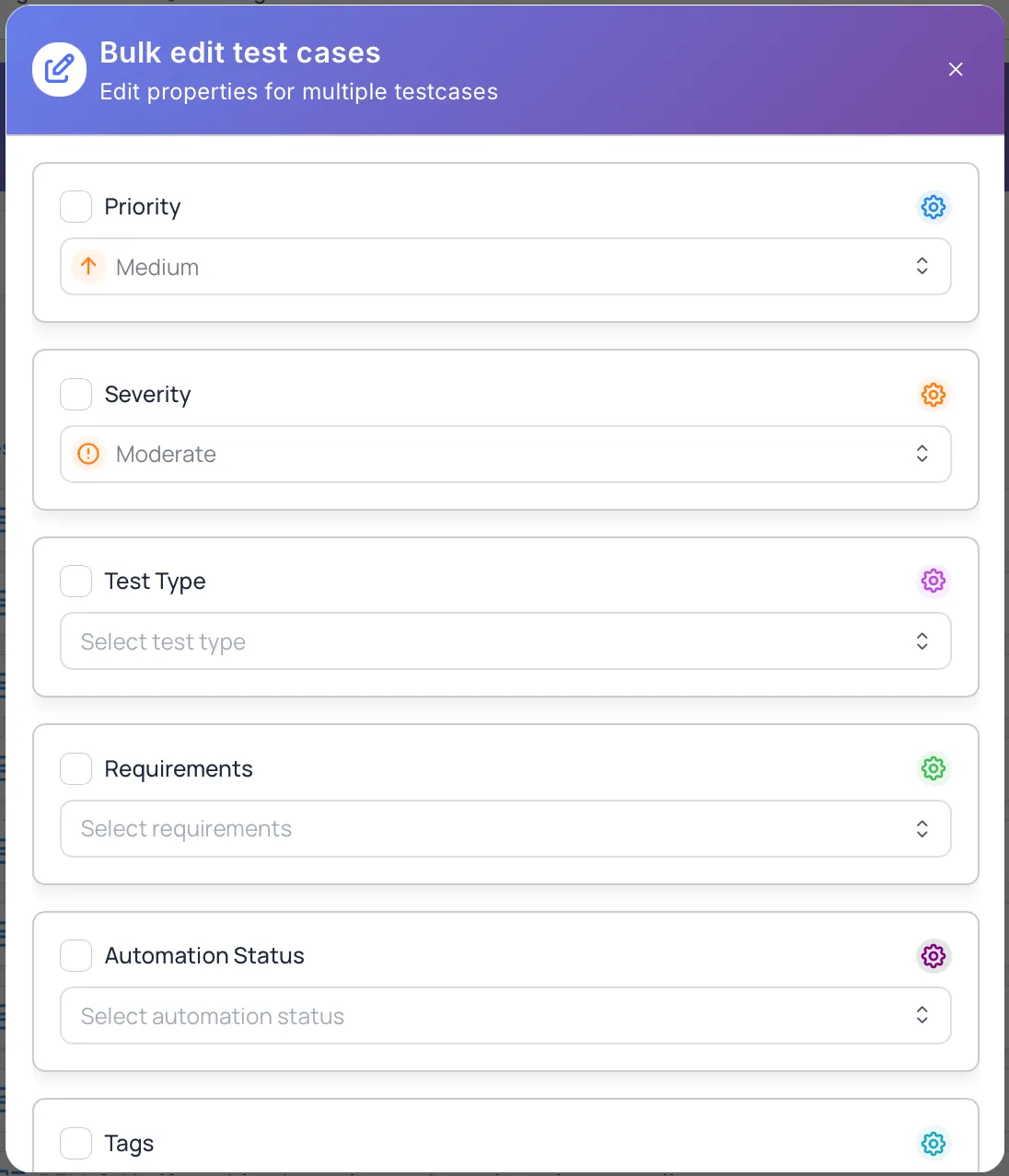
Section titled “Bulk Edit Test Cases”Bulk Edit allows you to update common properties across multiple test cases at once.
-
Select one or more test cases.
-
Click the Edit icon in the bulk actions bar.
-
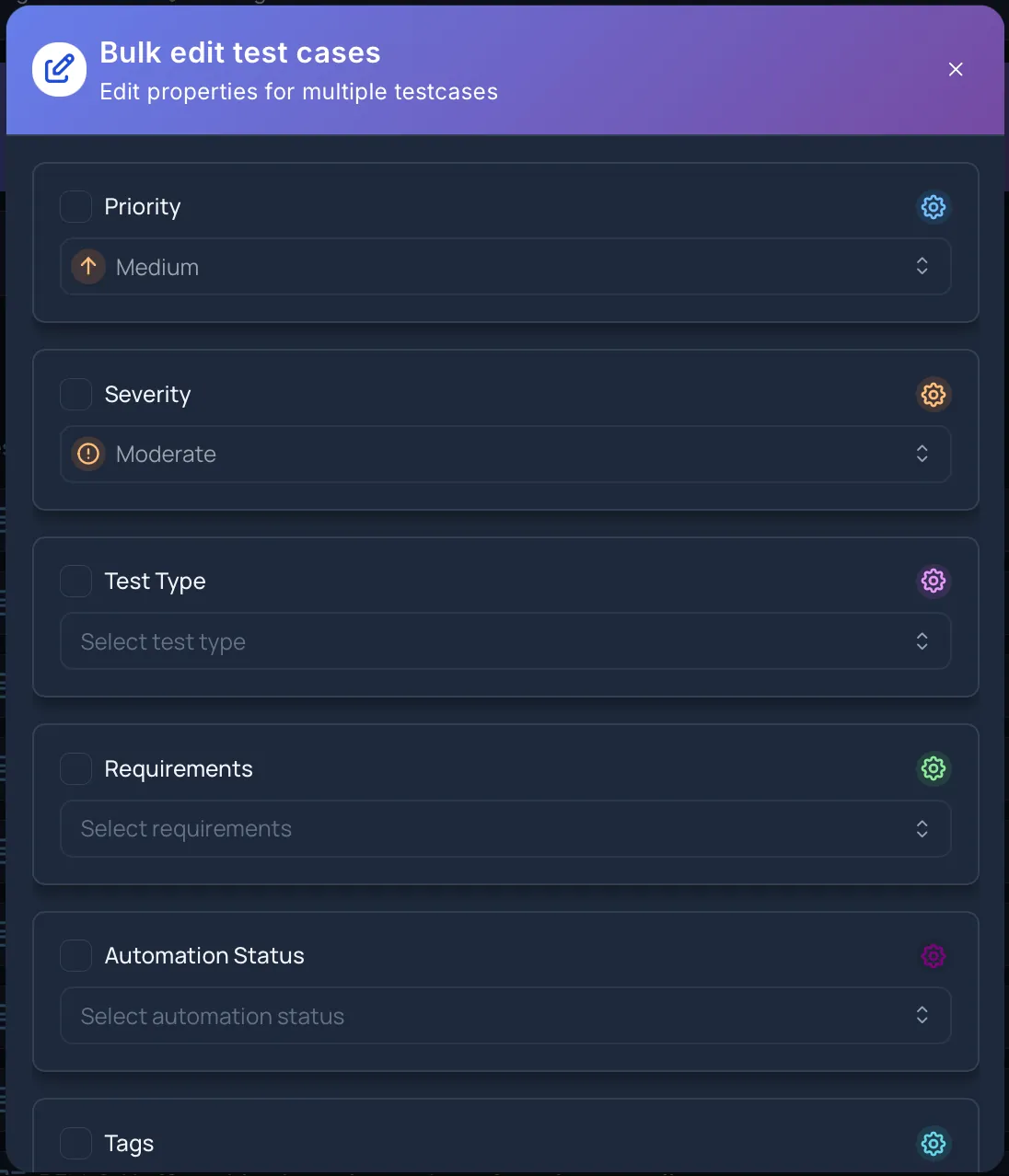
The Bulk Edit Test Cases modal opens.
-
Select the fields you want to update.
-
Apply the changes.
Only the fields you explicitly select will be updated.
Supported Bulk Edit Fields
Section titled “Supported Bulk Edit Fields”You can bulk update:
- Priority
- Severity
- Test Type
- Automation Status
- Manual
- Automated
- To Be Automated
- Automation In Progress
- Parent Folder — moves the selected cases into another folder
Fields that are not selected remain unchanged.
Requirements and labels cannot be bulk edited. Update those on individual test cases, or from the requirement’s own linking view.
Bulk Delete
Section titled “Bulk Delete”Bulk Delete removes multiple test cases at once.
-
Select the test cases to delete.
-
Click the Delete icon in the bulk actions bar.
-
Confirm the deletion.
Bulk Export
Section titled “Bulk Export”You can export selected test cases for reporting, backup, or migration.
How to Export
Section titled “How to Export”-
Select one or more test cases.
-
Click the Export icon.
-
Choose an export format.
Supported Export Formats
Section titled “Supported Export Formats”- Excel (.xlsx)
- CSV (.csv)
- JSON (.json)
Excel and CSV use the same fourteen columns as the Generic Excel import template, so an export re-imports cleanly: Title, Priority, Severity, Description, Test Type, Parent Folder, Requirements, Automation Status, Precondition Description, Precondition Output, Step Description, Step Output, Step Data and Is Gherkin.
Two things don’t survive that flat format:
- Shared steps become ordinary steps. The spreadsheet has no shared-step column, so a re-import brings them back as normal steps.
- Step Data exports empty. Imported Step Data is added to the step description, so the Step Data column exports empty.
JSON keeps both, along with labels and custom fields, which the spreadsheet formats don’t include. Use it when you want a copy that keeps everything, rather than something to edit in a spreadsheet.
Create Test Run from Selected Test Cases
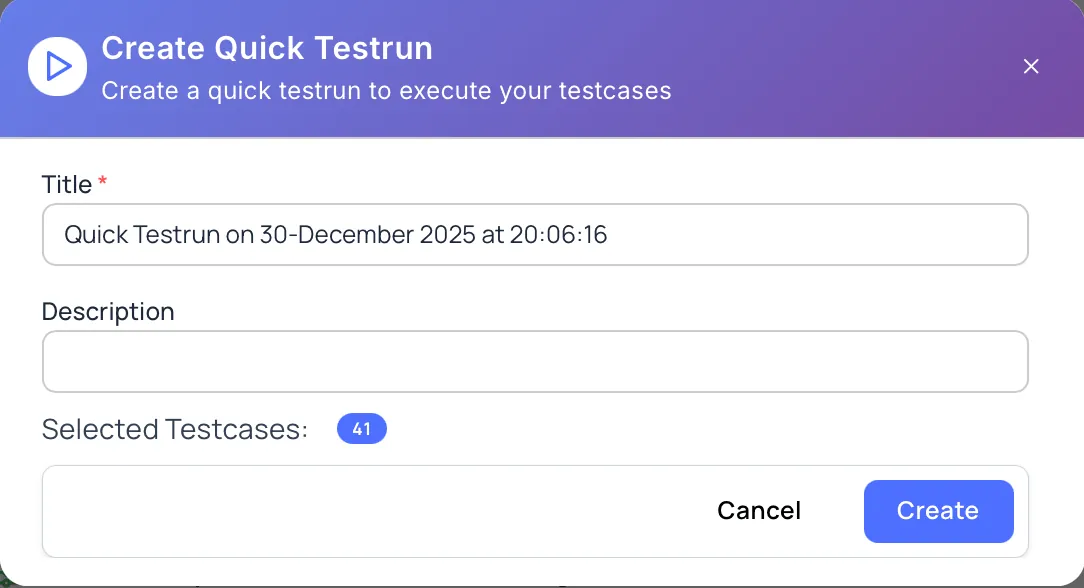
Section titled “Create Test Run from Selected Test Cases”Bulk selection provides a fast way to create a test run.
How to Create a Test Run
Section titled “How to Create a Test Run”-
Select the required test cases.
-
Click Create Test Run.
-
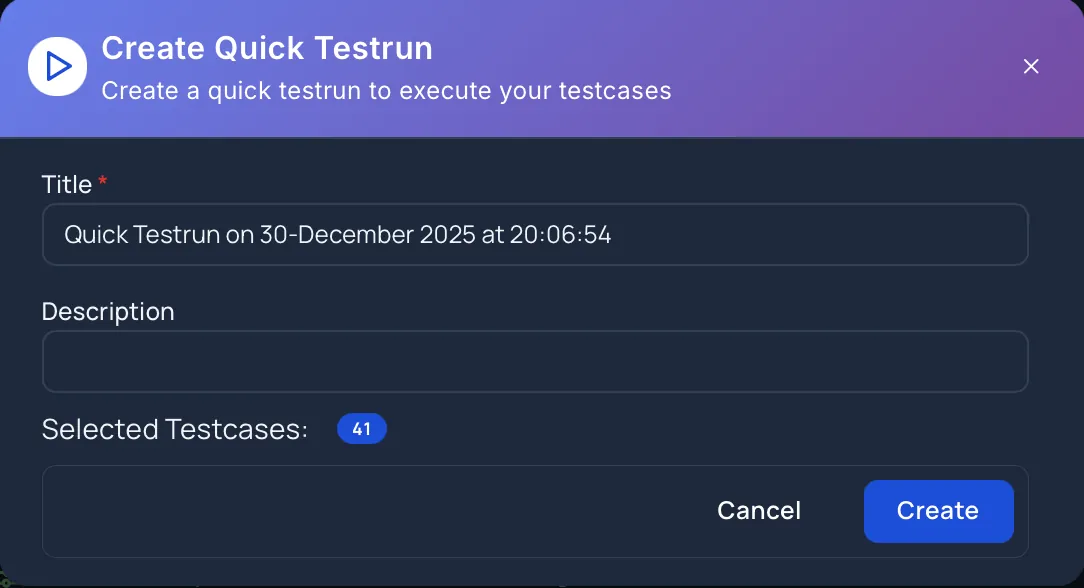
Enter test run details.
-
Create the test run.
Important Notes
Section titled “Important Notes”- Test runs created this way are standalone executions
- Test runs are not tied to releases
- Selected test cases are added automatically
This is useful for:
- Ad-hoc regression runs
- Smoke or sanity executions
- Exploratory testing sessions
Clearing Selection
Section titled “Clearing Selection”To clear all selected test cases:
- Click the Clear Selection icon
This hides the bulk actions bar and resets the list state.
Best Practices
Section titled “Best Practices”- Apply filters first, then use Select All
- Double-check selections before deleting
- Use bulk edit for consistent metadata updates
- Export test cases before large deletions
- Prefer bulk test run creation for quick execution cycles
Permissions
Section titled “Permissions”Bulk operations depend on project role:
- Project Manager – Full access to bulk operations
- Project Coordinator – Can bulk edit and create test runs
- Project Member – Limited bulk actions based on permissions
- Project Viewer – Read-only access
Custom roles may further restrict or allow specific bulk actions.
Next Steps
Section titled “Next Steps”- Learn about Filter & Search Test Cases
- Explore Manage Test Case Folders
- Review Repository Overview