Test Case Repository Overview
3 min read
A test case repository is the shared library where a QA team keeps its test cases, organized so anyone can find, reuse and run them. In Hawzu, that’s the Repository: every test case in a project, in folders, with tools to search, filter and manage them.
Accessing the Repository
Section titled “Accessing the Repository”To access the Repository:
-
Open a project from the Projects page.
-
In the project side panel, click Repository.
-
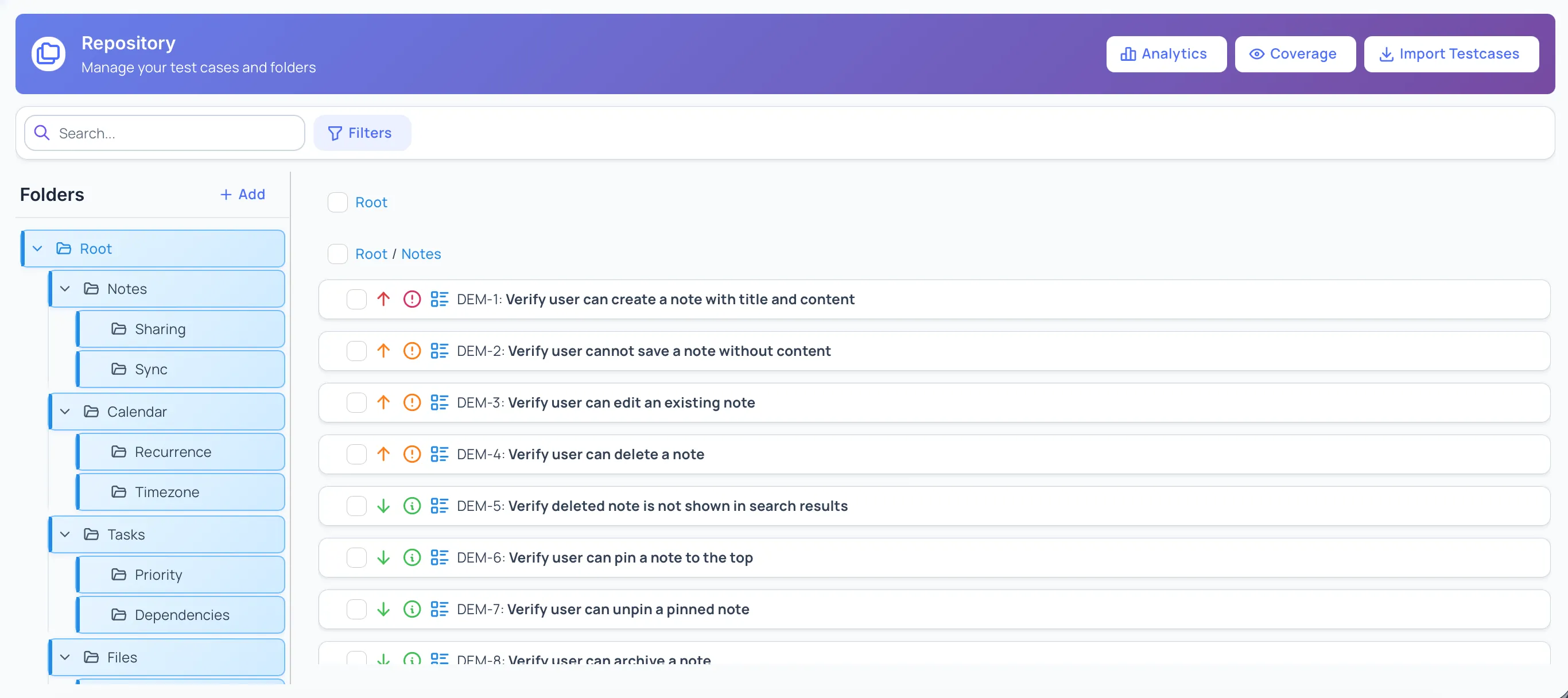
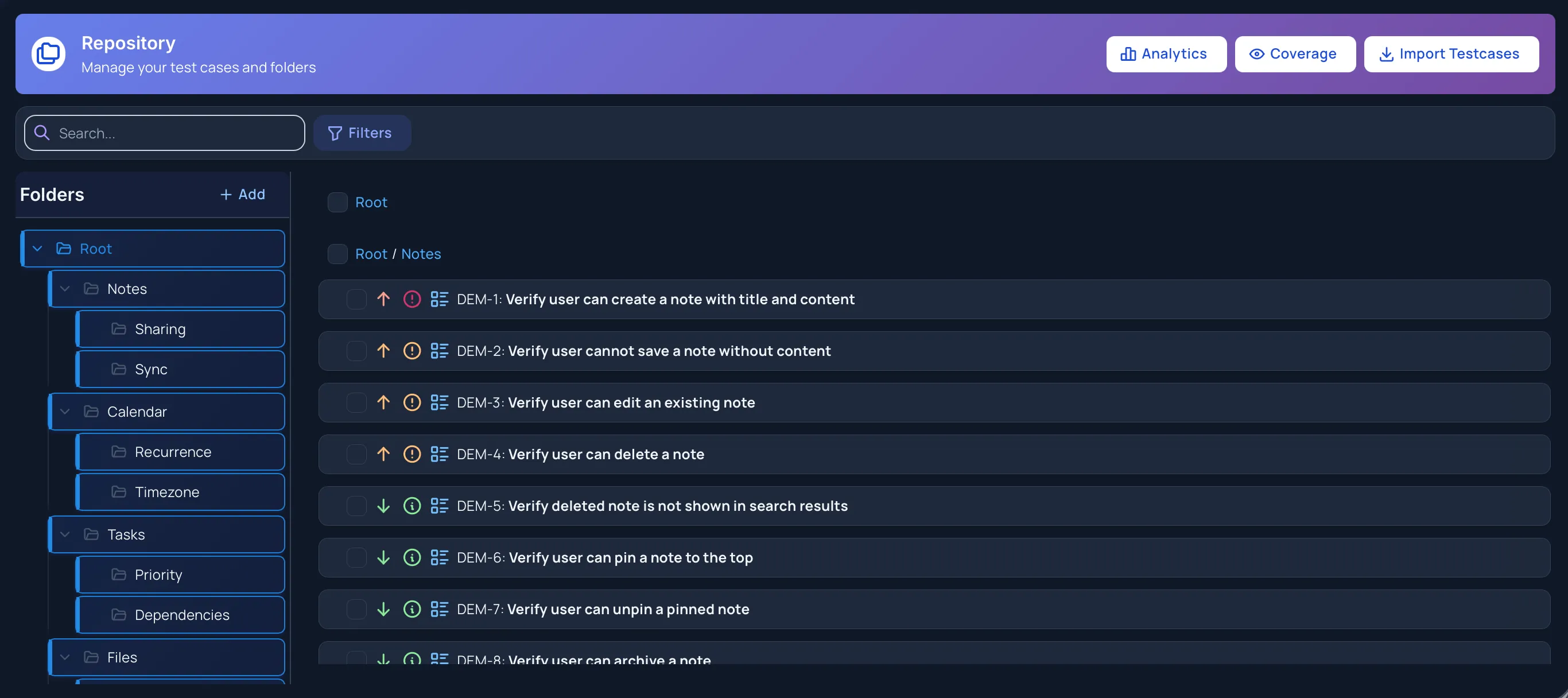
The Repository view opens with:
- Folder tree on the left
- Test case list in the main area
- Filters and actions at the top
Core Concepts
Section titled “Core Concepts”What is the Repository?
Section titled “What is the Repository?”The Repository is where all test cases for a project live.
It allows you to:
- Organize test cases using folders
- Create, view, and edit test cases
- Search and filter test cases
- Perform actions on one or more test cases
Every test case in a project is kept here.
Repository Structure
Section titled “Repository Structure”The Repository uses a hierarchical folder structure.
- Folders help group related test cases
- Subfolders allow deeper organization
- Uncategorized contains test cases not placed in any folder
Repository Interface
Section titled “Repository Interface”Folder Tree
Section titled “Folder Tree”The folder tree allows you to:
- Navigate folders and subfolders
- Select a folder to view its test cases
- Create, rename, or delete folders
Folders help keep the repository structured as the number of test cases grows.
Test Case List
Section titled “Test Case List”The main panel displays test cases for the selected folder.
From here, you can:
- View test case titles and key attributes
- Select one or more test cases
- Open a test case to view or edit details
Filters and Search
Section titled “Filters and Search”The Repository provides tools to quickly locate test cases.
You can:
- Search test cases by title or content
- Filter by attributes such as priority, severity, or status
- Combine multiple filters to narrow results
Managing Test Cases
Section titled “Managing Test Cases”Creating Test Cases
Section titled “Creating Test Cases”You can create test cases directly in the Repository.
Test cases can include:
- Title and description
- Preconditions
- Steps and expected results
- Priority, severity, and other attributes
Editing Test Cases
Section titled “Editing Test Cases”Existing test cases can be updated at any time.
You can:
- Modify test case content
- Update metadata such as priority or status
- Move test cases between folders
Bulk Actions
Section titled “Bulk Actions”The Repository supports working with multiple test cases at once.
You can:
- Select multiple test cases
- Perform bulk actions such as delete or move
- Quickly manage large sets of test cases
Bulk actions help reduce repetitive work when maintaining the repository.
Defect Coverage Gaps
Section titled “Defect Coverage Gaps”The repository actions menu includes Defect coverage gaps under Repository — a list of the project’s defects that have no test case linked, with a Create test case action that pre-fills the new case from the defect and links the two automatically.
It answers “which bugs could we find again?” and turns the answer into test cases without leaving the list. See Defect Coverage Gaps.
Importing Test Cases
Section titled “Importing Test Cases”You can import test cases into the Repository using Excel files.
Importing allows you to:
- Create multiple test cases at once
- Migrate test cases from other tools
- Set up a new project quickly
Permissions
Section titled “Permissions”Access to Repository features depends on the user’s project role:
-
Project Manager
Full access to the Repository, including creating, editing, moving, and deleting folders and test cases. -
Project Coordinator
Can create and edit test cases, organize them into folders, and perform bulk operations. -
Project Member
Can view, create and edit test cases, and run them. Can’t create folders or delete test cases. -
Project Viewer
Read-only access to the Repository.
Best Practices
Section titled “Best Practices”When working with the Repository:
- Organize test cases using meaningful folders
- Keep test case titles clear and descriptive
- Avoid very deep folder nesting
- Review and clean up outdated test cases periodically
- Use bulk actions for efficiency