Repository Analytics & Reporting Guide
The Repository provides comprehensive analytics and reporting features to help you track repository health, analyze test coverage, and monitor trends over time. Use these insights to make data-driven decisions about your test case management.
Repository Analytics
Accessing Analytics
To view repository analytics:
-
Navigate to the Repository page.
-
Click the “Analytics” button in the header.
-
A modal will display comprehensive analytics.
-
Analytics are calculated for:
- All test cases in the repository (if no folder selected)
- Test cases in the selected folder (if a folder is selected)
Overview Metrics
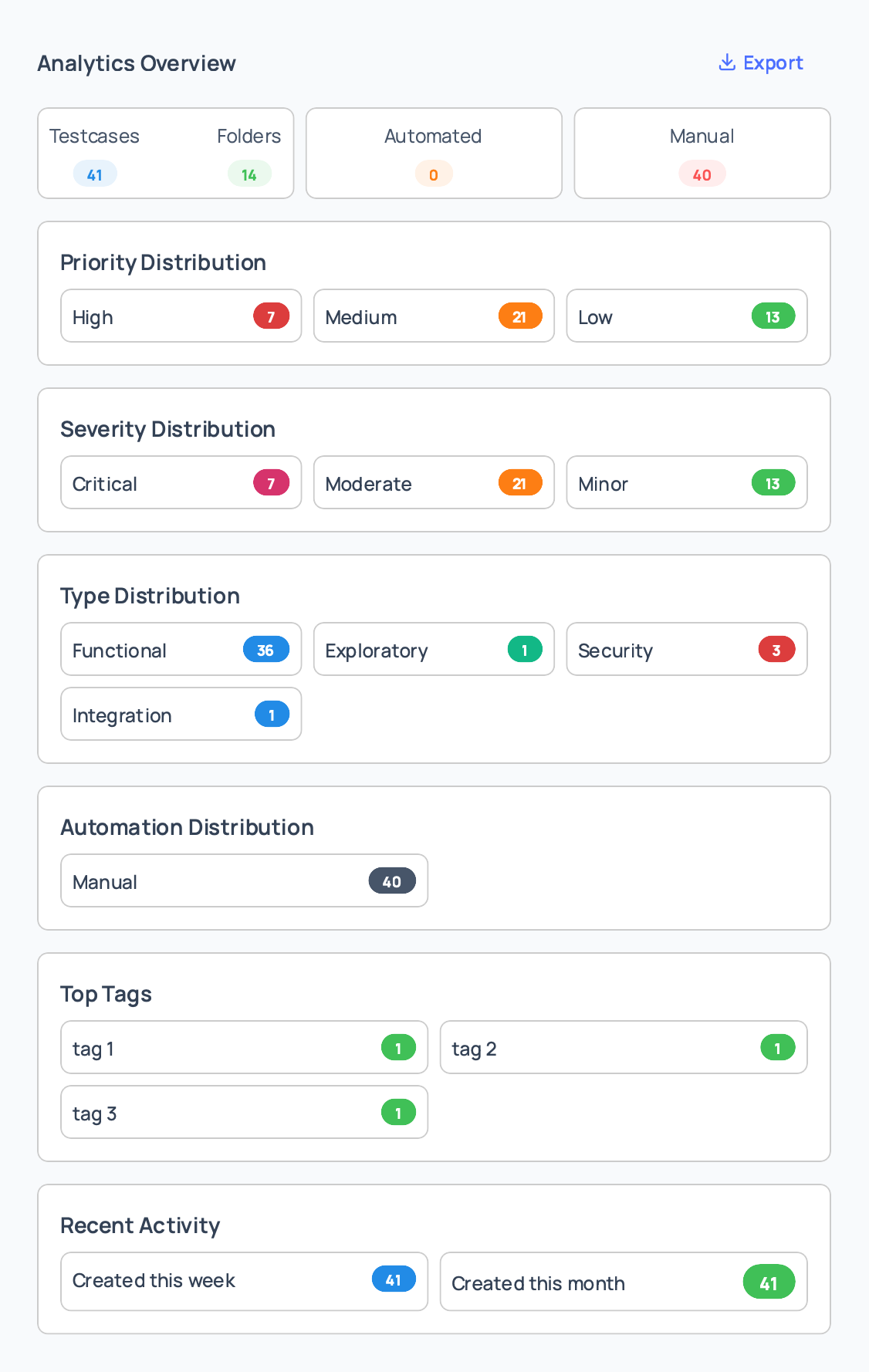
The analytics overview shows key metrics:
Total Test Cases:
- Number of test cases in the repository or selected folder
- Includes all test cases regardless of status
Total Folders:
- Number of folders in the repository or selected folder
- Includes nested folders
Automated vs Manual:
- Count of automated test cases
- Count of manual test cases
- Percentage distribution
Test Case Distribution:
- Breakdown by various categories
- Visual representation of distribution
Distribution Charts
Analytics include distribution charts for:
Priority Distribution:
- Shows count of test cases by priority level
- Categories: Critical, High, Medium, Low
- Helps identify priority balance
Severity Distribution:
- Shows count of test cases by severity level
- Categories: Critical, High, Medium, Low
- Helps assess risk coverage
Type Distribution:
- Shows count of test cases by type
- Categories: Functional, Regression, Smoke, etc.
- Helps understand test type balance
Automation Status Distribution:
- Shows automated vs manual test cases
- Helps track automation progress
Tags Distribution:
- Shows most common tags
- Helps understand test case categorization
- Identifies popular tags
Recent Activity
The analytics include recent activity information:
Recently Created Test Cases:
- List of recently created test cases
- Shows creation date and creator
- Helps track recent additions
Recently Updated Test Cases:
- List of recently updated test cases
- Shows update date and updater
- Helps track maintenance activity
Recent Folder Changes:
- Recent folder creation and updates
- Helps track organizational changes
Exporting Analytics
To export analytics data:
-
View the analytics modal.
-
Click “Export Analytics” button.
-
Analytics data is downloaded as a JSON file.
-
The exported file includes:
- Overview metrics
- Distribution data
- Recent activity
- Timestamp and folder information
-
Use the exported data for:
- External reporting
- Data analysis
- Historical tracking
- Integration with other tools
Test Coverage Report
Accessing Coverage Report
To view test coverage:
-
Navigate to the Repository page.
-
Click the “Coverage” button in the header.
-
A modal will display coverage metrics.
Coverage Metrics
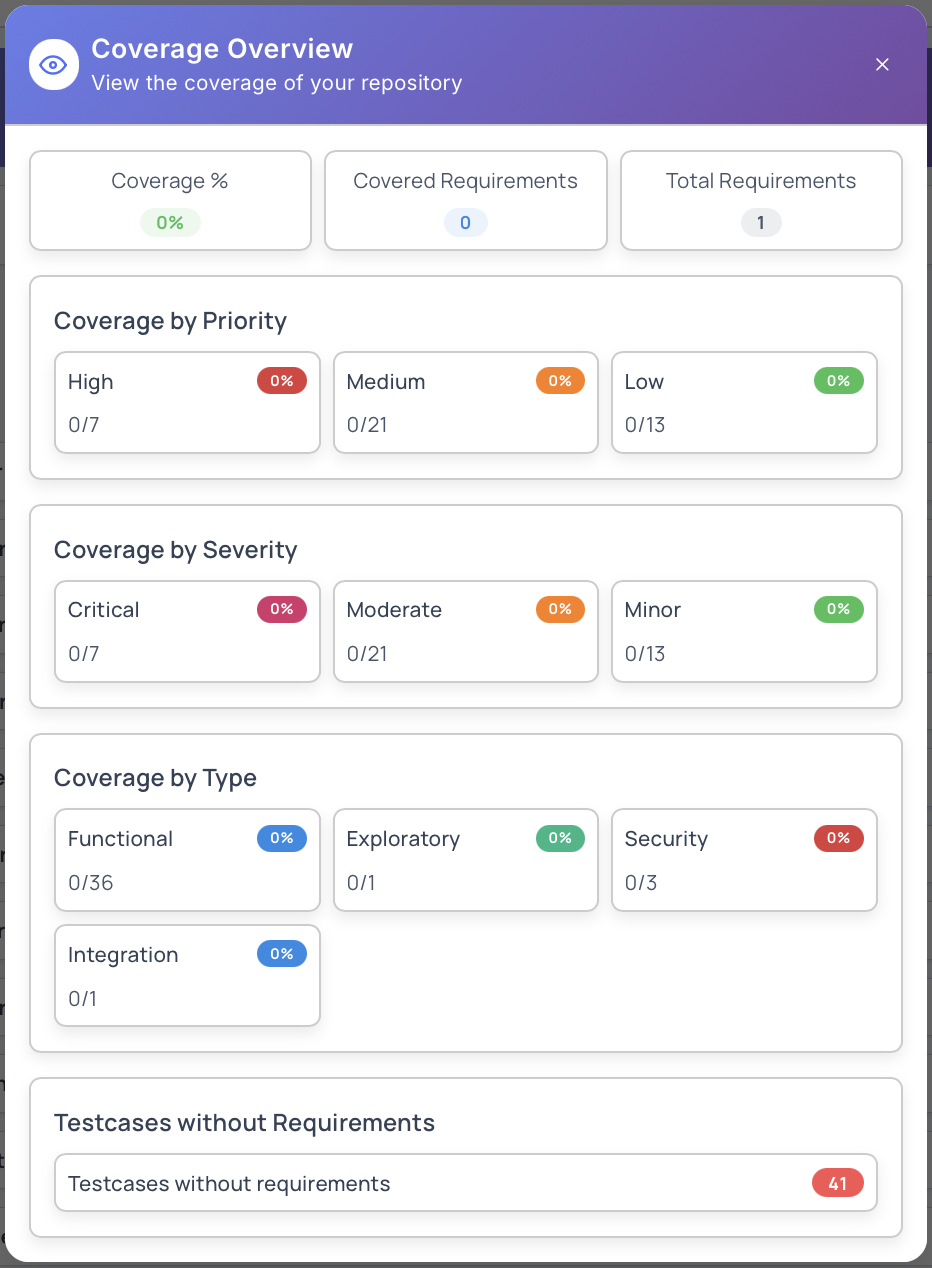
The coverage report shows:
Requirement Coverage:
- Percentage of requirements covered by test cases
- Total requirements vs covered requirements
- Visual coverage indicator
Coverage by Requirement:
- Detailed coverage per requirement
- Shows which requirements have test cases
- Identifies coverage gaps
Uncovered Requirements:
- List of requirements without test cases
- Helps identify gaps in test coverage
- Prioritize test case creation
Coverage Trends:
- Historical coverage data
- Shows coverage changes over time
- Helps track coverage improvements
Using Coverage Data
Coverage data helps you:
- Identify Gaps: Find requirements without test cases
- Prioritize Testing: Focus on uncovered requirements
- Track Progress: Monitor coverage improvements
- Report to Stakeholders: Share coverage metrics
- Plan Testing: Plan test case creation for uncovered areas
Trend Analysis
Accessing Trend Analysis
To view trend analysis:
-
Access trend analysis from the analytics modal.
-
Select a time range:
- Week: Last 7 days
- Month: Last 30 days
- Quarter: Last 90 days
- Year: Last 365 days
- Custom: Select custom date range
-
View trends for various metrics.
Trend Metrics
Trend analysis shows trends for:
Test Case Creation:
- Number of test cases created over time
- Creation rate trends
- Identifies periods of high activity
Test Case Updates:
- Number of test cases updated over time
- Update frequency trends
- Shows maintenance activity
Folder Creation:
- Number of folders created over time
- Organizational growth trends
Test Case Distribution Changes:
- Changes in test case distribution over time
- Type, priority, severity trends
- Helps identify shifts in testing focus
Custom Date Range
To use custom date range:
-
Select “Custom” from the time range dropdown.
-
Select start and end dates using date pickers.
-
View trends for the selected period.
-
Compare different time periods.
Analytics Best Practices
Regular Monitoring
- Schedule Reviews: Review analytics regularly (weekly or monthly)
- Track Trends: Monitor trends over time
- Set Goals: Set targets for metrics
- Compare Periods: Compare current period with previous periods
Using Analytics Data
- Identify Issues: Use analytics to identify problems
- Make Decisions: Make data-driven decisions
- Plan Improvements: Plan improvements based on insights
- Report Progress: Share analytics with stakeholders
Coverage Management
- Track Coverage: Regularly check requirement coverage
- Fill Gaps: Create test cases for uncovered requirements
- Maintain Coverage: Keep coverage high as requirements change
- Report Coverage: Include coverage in status reports
Trend Analysis
- Monitor Trends: Track trends over time
- Identify Patterns: Look for patterns in the data
- Plan Resources: Use trends to plan resource allocation
- Predict Needs: Use trends to predict future needs
Reporting Use Cases
Status Reports
Creating status reports:
-
Export analytics data.
-
Create reports showing:
- Test case counts
- Coverage metrics
- Recent activity
- Trends
-
Share with stakeholders.
Planning
Using analytics for planning:
-
Review distribution charts.
-
Identify areas needing more test cases.
-
Plan test case creation.
-
Allocate resources.
Quality Assurance
Using analytics for QA:
-
Monitor test case quality.
-
Track coverage.
-
Identify gaps.
-
Improve test case management.
Permissions
Access to analytics depends on your role:
- Project Owner: Full access to all analytics
- Project Administrator: Can view all analytics
- Project Manager: Can view analytics
- Tester: Can view basic analytics
- Viewer: Read-only access to analytics
Note: Analytics respect folder access permissions. You can only see analytics for folders you have access to.
Next Steps
- Learn about Repository Overview
- Explore Creating Test Cases
- Read about Filtering & Search
- Check Bulk Operations for efficient management
Was this page helpful?